A Free AI Guide for Retirees
No setup. No tech skills. Just a real ChatGPT example — and a plain-English prompt you can try yourself in two minutes.
New to AI?
Try a real ChatGPT prompt right now — no setup, no blank page, no decisions. Just copy, paste, and see what happens.
Try It NowAlready Using AI?
Skip ahead to better AI prompts for retirees and the right tool for every question — ChatGPT, Claude, Gemini, Grok, or Perplexity. Optional Arc workspace setup is on a separate free page when you want it.
Jump to the GuideSee the Full Guide in Action
Gary walks through the guide on video — C.A.R.E., picking the right AI tool, and live examples for seniors and retirees. Optional Arc workspace setup is a free written walkthrough on its own page.
Try It Yourself — Takes About 2 Minutes
No downloads. No technical background needed. Use ChatGPT — it's free, works in any browser, and is the easiest place for most retirees to start.
It Worked, Right?
Here is what to do next — choose what feels right.
How It's Done
Prefer to see AI in action before going further? Watch a short live demo — nothing to install.
Watch Demo (4–5 min)Follow the Full Guide
Ready to go deeper? The guide below covers better prompts and the right tools. Workspace setup (free) is on its own page when you are ready.
Start the GuideGet Personal Help
Want Gary to walk you through it live on Zoom? A 1-on-1 session is the fastest way to get up and running.
Book a SessionIf you tried the prompt above, you have already used AI successfully. The steps below help you get better answers, pick the right tool, and try AI with a real document. Optional Arc workspace setup is a separate free page — open it whenever you like.
The C.A.R.E. Method
Most people type one short sentence and get a general answer. Four lines using C.A.R.E. gives AI everything it needs to deliver a personalized response. Use this after your first successful prompt — it is your upgrade, not a requirement. (You don't need C.A.R.E. for Perplexity — just ask your question naturally, like you would in Google.)
Context
Who you are and relevant background — age, health conditions, situation. Helps AI personalize the answer to you specifically.
Action
Exactly what you want AI to do — explain, summarize, list, compare, draft. Be specific about the task.
Result
What the finished answer should look like — plain English, bullet points, question list, table. Tell AI the format you want.
Exclusions
What you do NOT want — no jargon, no lengthy disclaimers, no "see a doctor" when you already have one.
✅ Real Example — Medical Research
Match Your Question to the Best AI
Not all AI tools work the same way. Four of them are conversational assistants — you have a back-and-forth with them. Perplexity is different: it is a research companion built to answer one question at a time with real sources. Knowing which is which takes five seconds and gets you a dramatically better answer.
Your 4 AI Assistants — pick one to talk to
| Tool | Best For | Why |
|---|---|---|
| Claude | Writing, analysis, sensitive topics | Careful, nuanced; best at reading long documents without losing detail |
| ChatGPT | Everyday drafting, all-rounder | Natural writing; explains and summarizes in plain English |
| Gemini | Google Docs / Gmail / image analysis | Lives inside Google — no copy-paste needed; best for photos and video clips |
| Grok | Current events, breaking news | Pulls from live news and X (Twitter) in real time |
Your Research Companion — when you need facts with sources
| Tool | Best For | Why |
|---|---|---|
| Perplexity | Current info, medical questions, product reviews, citations | Searches the live web and cites sources — built for one question at a time |
When to use which
Need to do something with words (write, summarize, plan) → AI assistant + C.A.R.E.
Need to find something true and current (news, medications, reviews) → Start with Perplexity
Best results often combine both: Perplexity finds the facts, an AI assistant helps you make sense of them.
Pro tip for health research: Use three tools in sequence — Perplexity to find the studies, Claude to read them, ChatGPT to explain what they mean. That's research-level work, not internet searching.
"Use AI as your starting point — not your final answer."
Ask AI → Review key facts → Verify anything medical, legal, or financial with a professional.
Set Up Your AI Workspace
If you want Claude, ChatGPT, Gemini, and Grok in one place, the full Arc browser walkthrough now lives on its own page — free, about one sitting, no membership required.
Open the workspace setup guide →Most readers continue below with a real document first. You can open the workspace guide anytime.
Use Something You Already Have
The fastest way to see how powerful AI really is — use a document you already have. Pick a letter, bill, or report sitting on your desk right now and follow these three steps.
Pick your document
Choose any letter, bill, or report you have on hand: an insurance letter, a medical report, a contractor estimate, an IRS notice, or even a confusing HOA letter.
Open Claude or ChatGPT and attach it
In Claude (claude.ai) or ChatGPT, look for the paperclip icon or attachment button. Upload your document or a photo of it. Before uploading: black out your SSN, account numbers, and date of birth.
Paste this ready-made C.A.R.E. prompt
Copy the prompt below and paste it into the AI chat alongside your document.
Not getting the answer you need? That is exactly what a Written Answer session is for. Submit your document and question to Gary — plain-English response within 48 hours.
Submit My Question →Not Happy With the Answer? Here's What to Do
AI is a conversation, not a search engine. If the first answer misses the mark, don't start over — just follow up in the same chat. Most people get dramatically better answers on the second or third message.
Ask for simpler language
If the answer feels too technical or hard to follow, say so directly. AI will rephrase in plain English.
Ask for a different format
If the answer is a wall of text, ask AI to reorganize the exact same information into a more readable format.
Add more context
If the answer feels too generic, give AI more details about your specific situation. The more it knows about you, the better the answer.
Ask for doctor-ready questions
At the end of any medical AI conversation, turn the research into a usable list you can print and bring to your appointment.
Try a second AI tool and compare
If one AI's answer doesn't feel right, open a second tab and ask the same question. Where two AIs agree, you can feel much more confident.
Expert-Built Prompts, Ready to Use
22 Topics · 60 Ready-Made Prompts · 3 Free Categories. Browse topics covering everything that matters in retirement — no account required to start.
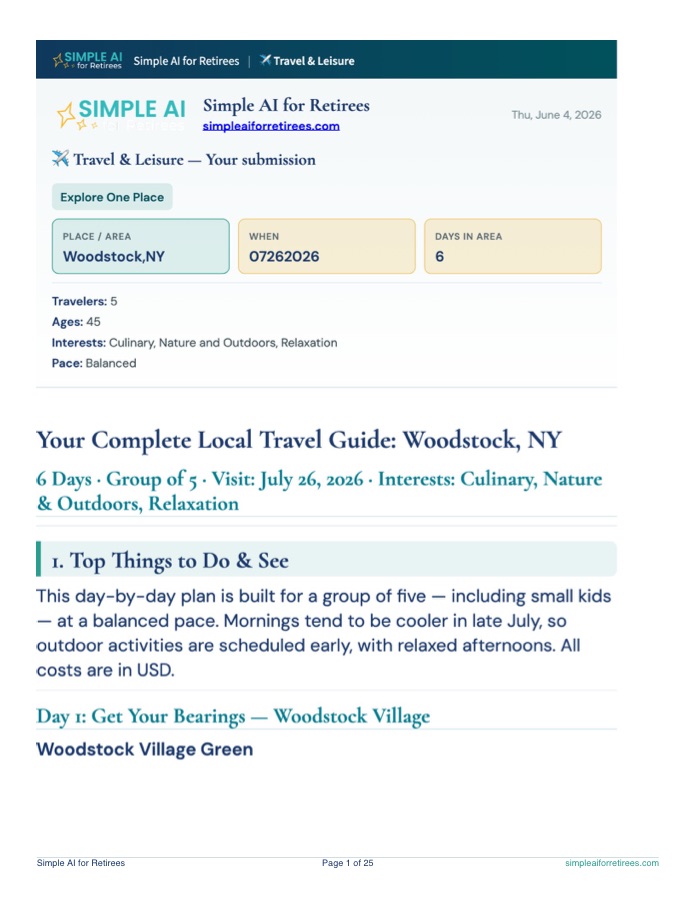
Open the Ready-Made Prompts →Woodstock, NY — 7-day travel guide
A real Full Report from Travel & Leisure — researched by two AI systems, reviewed and synthesized. One location, seven days, ready to print or save as PDF.
- 25-page printable report
- Day-by-day plans, dining, and local operators
- Print, PDF, and copy included with membership
Sample for illustration. Verify details before booking. Try Travel & Leisure →
When you're ready to go deeper
Members unlock every Ready-Made Prompts category and get every past webinar replay — cancel anytime.
Get Ready-Made Prompts →Book a 1-on-1 Session
Gary walks you through it live on Zoom — workspace setup, your first prompt, and your questions answered in real time.
Book a Session →Join the Free Monthly Webinar
A free group session where Gary demos the latest AI tools and answers questions live. No cost, no pressure.
Reserve Your Spot →Support This Free Resource
This guide is free and always will be. If it helped you, a small contribution keeps it going.
Donate with PayPalSecure checkout on PayPal. After you complete your gift, you’ll return here for a brief thank-you.